“Last Epoch overlay” can mean three different things: the game’s built-in map overlay, the third-party Last Epoch Overlay app distributed through Overwolf, or an offline helper mod such as LeHelper. Use the built-in map when you only need navigation. Use the Overwolf app when you want item comparisons, build guidance, price context, or Echo-session statistics while playing. Consider LeHelper only for a fully offline setup where its damage meter, guide panel, tracker, and map utilities justify installing a mod loader.
The important limitation is that these tools do not provide the same kind of information. The native map contains navigation information, the Overwolf app combines several companion features, and LeHelper modifies the offline game environment. Do not install all three simply because they include the word “overlay.” Start with the smallest option that solves your actual problem.
Which Last Epoch overlay should you use
| Option | Best use | Installation | Important limitation |
|---|---|---|---|
| Built-in map overlay | Seeing the area map over gameplay and repositioning it temporarily | No external software | Older player reports indicate that its position can reset when the overlay is toggled or a new area loads |
| Last Epoch Overlay on Overwolf | Evaluating items, viewing market context, following a build plan, and tracking Echo sessions | Installing the app also installs the Overwolf Client | Market values are asking-price references rather than confirmed sales, and community observations may be incomplete or stale |
| LeHelper | Offline damage measurement, an in-game build guide, progress tracking, map utilities, and visual-performance toggles | MelonLoader 0.7.2 plus the LeHelper DLL in the game’s Mods folder | The author states that it was made and tested offline and warns users to run the game in full offline mode |
Choose the native map first if navigation is your only problem. Choose the Overwolf app if you want information beside the game without manually switching to several browser pages. LeHelper is a separate modding route, not a substitute installation method for the Overwolf app.
Use the built-in map overlay for navigation
The built-in map is the simplest interpretation of the keyword. Player reports describe TAB as the control that switches between the minimap and the larger transparent overlay. Arrow keys can then move the overlay around the screen. This can be useful on an ultrawide display or whenever the centered map covers combat, loot, or the part of the environment you are trying to inspect.
A practical navigation routine is:
- Press your current map-overlay key to replace the corner minimap with the large overlay.
- Use the directional controls assigned to map movement to shift the map away from the most important part of the screen.
- Adjust the map scale or opacity in the game options until paths remain readable without hiding enemies and ground effects.
- Toggle the overlay off when precise combat visibility matters more than navigation.
- Expect to reposition it after a reset if the game recenters the map when you toggle modes or enter another area.
The TAB and arrow-key behavior comes from older player reports, so treat those keys as common defaults rather than permanent rules. If they do not work in the current client, inspect the game’s control bindings before diagnosing the overlay as broken. A changed or reassigned binding can produce the same symptoms as a failed overlay.
A request to “lock” the overlay position also appeared in older feedback because the reported behavior recentered the map after toggling it or loading another area. A persistent position lock is not confirmed by the older reports. Plan around temporary positioning unless the current settings screen explicitly offers a lock or automatic-centering option.
Fix a map overlay that looks excessively zoomed
A large map that appears cropped, moves when you press the arrow keys, but never reveals a usable overview may have a stuck zoom state. One player-reported workaround is to reset the map zoom control through its complete range:
- Open the game options and locate the map zoom slider.
- Move the slider completely to the right.
- Move it completely back to the left.
- Close the options and reopen the full overlay.
- Test more than one zoom position after the reset.
In the reported case, moving the slider through both extremes restored the overlay across its zoom settings. This is a community workaround from 2024, not a current official fix, so it should be an early diagnostic step rather than a guarantee.
If the slider reset does not help, separate a control problem from a rendering problem. First confirm that the minimap still works. Then confirm that the full overlay responds to its movement controls. If the map moves but remains cropped, the zoom or display state is the likely area to investigate. If nothing opens, check the assigned overlay key. If the overlay opens normally but returns to the center later, that matches the previously reported reset behavior rather than the zoom failure.
Do not install a third-party overlay merely to repair the native map. Item tools and build panels add unrelated software and cannot be assumed to correct the game’s own map state.
Set up the Overwolf Last Epoch Overlay for item evaluation
The Overwolf-distributed app is the relevant choice when “overlay” means an in-game companion rather than the transparent map. Its Evaluate feature is designed around an item-first workflow: hover over an item, use the configured hotkey, inspect comparable listings, and refine the search with item-specific filters.
Use Evaluate as a structured comparison process:
- Start with the exact item you are considering rather than a broad item category.
- Open Evaluate with the app’s configured hotkey while the item is available for inspection.
- Check the modifiers and crafting potential shown for your item.
- Review comparable entries and remove results that do not match the properties that matter to your decision.
- Distinguish live Bazaar listings from listings observed by the community while adventuring.
- Preview a candidate listing beside your item before treating it as a close comparison.
- Return to the game with a decision: keep the item, investigate it further, adjust your search, or ignore the apparent comparison.
The comparison is context, not an automatic appraisal. A visually similar item can still differ in modifiers, crafting potential, or other item-specific fields. The app provides filters so you can reduce that mismatch; use them instead of treating the first displayed figure as the item’s value.
The app is delivered through Overwolf, and downloading it installs the Overwolf Client. Its store page states that the app contains ads. A Premium option removes ads and unlocks premium features. Check its current included features and price before deciding whether to upgrade. Decide whether the standard experience is sufficient after testing the specific feature you need rather than assuming payment is required for every useful function.
Interpret price information without mistaking it for a sale value
The app can browse unique items by category and Legendary Potential, show reference asking prices, and display seven-day price trends where data is available. Those features help establish market context, but they do not establish what an item actually sold for.
Keep three distinctions clear:
- A live Bazaar listing is an active offer, not proof of a completed transaction.
- A community-observed listing may be incomplete or out of date.
- A seven-day trend describes changes in available reference data, not a guaranteed future price.
When the live Bazaar and community-observed results disagree, do not average them blindly. Give the live search more relevance to the market you can act on, while treating the community data as broader but less dependable context. If only a few loosely comparable entries appear, the honest conclusion is that the overlay has not given you a strong price signal.
Circle of Fortune players can still use the app’s build and session features, but Bazaar price checking is less directly actionable for a character that is not using the Merchant’s Guild market. Select features according to the character’s activity instead of making the market panel the center of every session.
Follow a build plan from inside the game
Last Epoch Overlay can create plans, import a supported Maxroll planner or build guide, save multiple loadouts, and show an intended allocation order. It can also compare the current character with a loadout so you can identify missing points and the next planned allocation. Build codes can be exported for sharing.
For a clean setup, create separate loadouts for materially different progression stages rather than repeatedly editing one plan. A leveling loadout can show what to allocate now, while a later loadout can preserve the destination you are working toward. Switch only when the character reaches the transition condition defined by the source build.
When the overlay reports missing points, verify whether you are viewing the correct loadout before changing the character. A mismatch may simply mean that an endgame plan is being compared with a leveling character. The overlay helps present and compare the plan; it does not prove that the plan is current, suitable for your gear, or appropriate for the content you are attempting.
Import or create the plan, select the correct progression loadout, follow its point order, and use the character comparison to identify the next allocation. Keep the source guide’s season, equipment requirements, and progression stage attached to each saved loadout.
Track Echo sessions and progression
The app’s Monolith history can record time spent, experience gained, gold gained, and deaths. It can show individual Echo results, session averages, experience rate, progress toward the next level, and a breakdown of time spent across activities. A post-session recap lets you inspect the run after you stop playing.
Use the tracker to answer one question at a time. For example:
- If leveling feels slow, compare experience rate across similar Echo sessions.
- If a route feels inefficient, compare time spent with the resulting experience and gold.
- If deaths are interrupting progress, review whether they cluster in a particular part of the session.
- If activity transitions consume too much time, inspect the time breakdown before changing the build.
Do not compare unlike sessions as if they were controlled tests. Different Echo objectives, deaths, pauses, character changes, or activity types can alter the totals. Session averages are most useful when the runs have similar goals and conditions.
The tracker records outcomes; it does not diagnose the combat cause of a death. Use it to find a pattern, then inspect the relevant defenses, encounter mechanics, or character choices separately.
Understand the LeHelper offline alternative
LeHelper is an in-game helper mod with a different risk and installation profile. The author’s listing identifies version 0.6.2, requires MelonLoader 0.7.2, and instructs users to place the DLL in Last Epoch\Mods. Its author says it was made and tested offline, disclaims responsibility for bans, and tells users to run the game in full offline mode. That warning should control the decision: do not treat the mod as an online-overlay recommendation.
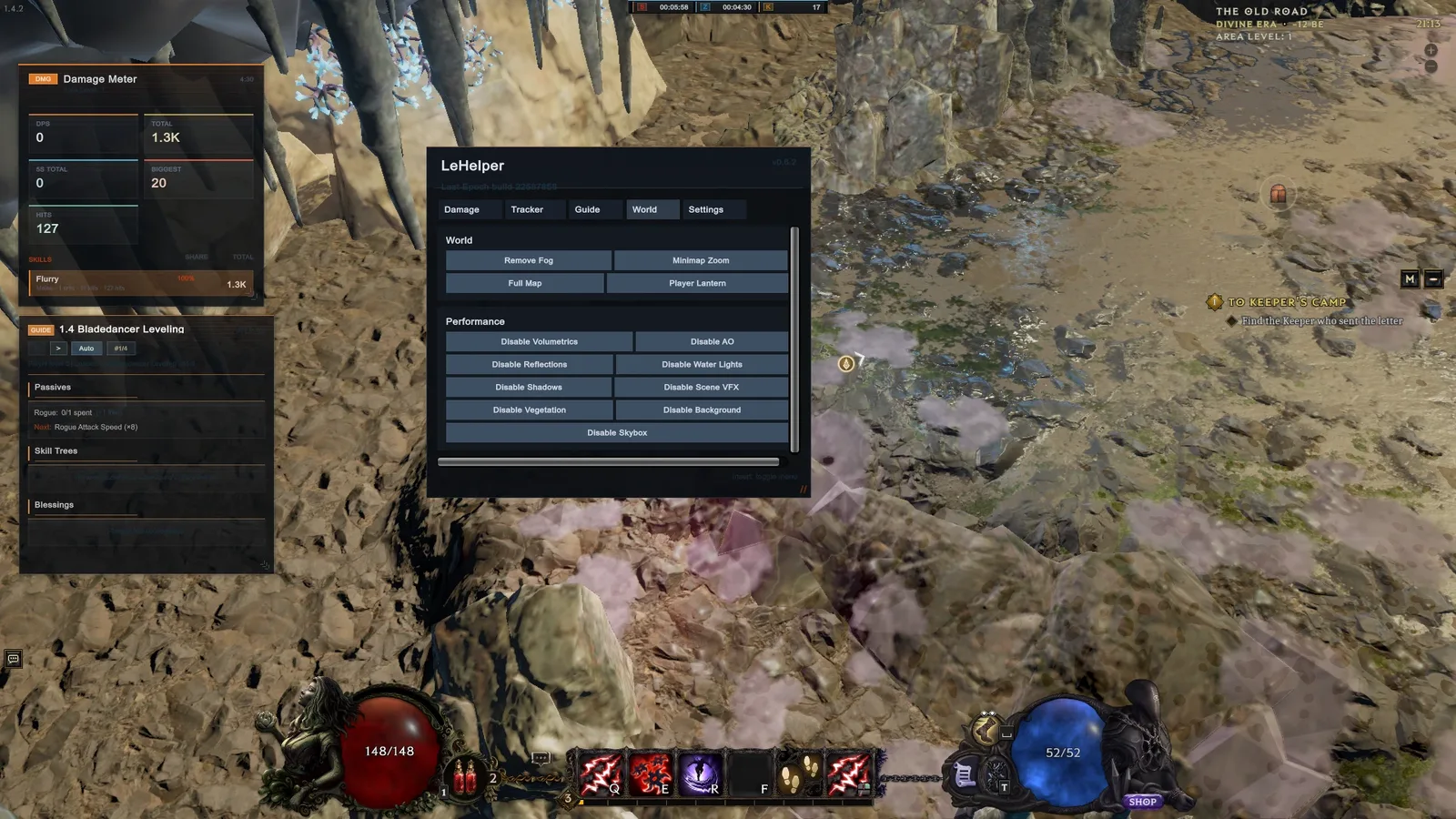
LeHelper’s World tab contains map and visual controls; its damage meter and guide panel are visible at the left in this earlier game-version example.
Its feature set includes:
- A damage meter with rolling damage, hit count, biggest hit, and skill breakdown.
- A build-guide panel for Maxroll planner URLs, including passive, skill, and blessing guidance.
- A tracker for session time, zone time, and zone kills.
- Full-map and minimap utilities, fog removal, and several world-display controls.
- Toggles for volumetrics, ambient occlusion, reflections, shadows, scene effects, vegetation, background clutter, and the skybox.
- Independent controls for overlay scale, opacity, visibility, and screen position where supported.
The default LeHelper keys listed by its author are Insert for the menu, F7 for the damage meter, F8 for the build guide, F9 to reset the damage meter, and F10 to pause or resume it. Pressing Delete twice resets saved settings.
There is an important key conflict to notice. In version 1.5.2.1, F8 is also the default in-game bug-report hotkey. If you use LeHelper in full offline mode, rebind one of those actions before relying on either shortcut. Otherwise, pressing F8 may not perform the action you expected.
LeHelper’s performance toggles disable visual systems; its author does not provide measured frame-rate gains. Treat them as diagnostic controls, not promised performance improvements. Change one category at a time so that you can identify which visual feature affected your result and restore it if readability becomes worse.
Troubleshoot an overlay by symptom
Use the symptom to choose the next check:
| Symptom | First check | Next action |
|---|---|---|
| The large native map does not open | Current map-overlay binding | Reassign or test the binding before changing software |
| The native map is cropped or appears stuck at extreme zoom | Map zoom slider | Move it fully right and then fully left, then retest |
| The native map keeps returning to the center | Toggle and area-change behavior | Treat the position as temporary unless the current client exposes a lock setting |
| Evaluate opens but comparisons are poor | Item-specific filters | Narrow results by the properties actually visible on the item |
| A listed price looks unreliable | Source and freshness of the listing | Separate live Bazaar offers from community observations and remember that neither proves a sale |
| A build comparison shows many missing points | Selected loadout | Confirm that the plan matches the character’s current progression stage |
| Echo statistics look inconsistent | Session conditions | Compare sessions with similar goals, activities, and interruption levels |
| A LeHelper shortcut performs the wrong action | Duplicate keybinds | Rebind the mod or game action, especially the shared F8 key |
| LeHelper settings become unusable | Saved mod configuration | Use the documented double-press Delete reset |
If the problem appears only after installing an external overlay, isolate that layer before changing the game’s map settings. If the native map is the only broken element, stay within the game controls first. This keeps troubleshooting focused and avoids confusing three unrelated overlay systems.